> For the complete documentation index, see [llms.txt](https://docs.ingestlabs.com/llms.txt). Markdown versions of documentation pages are available by appending `.md` to page URLs; this page is available as [Markdown](https://docs.ingestlabs.com/tag-manager/environments/view-staging-environment.md).
# View Staging Environment
## Introduction
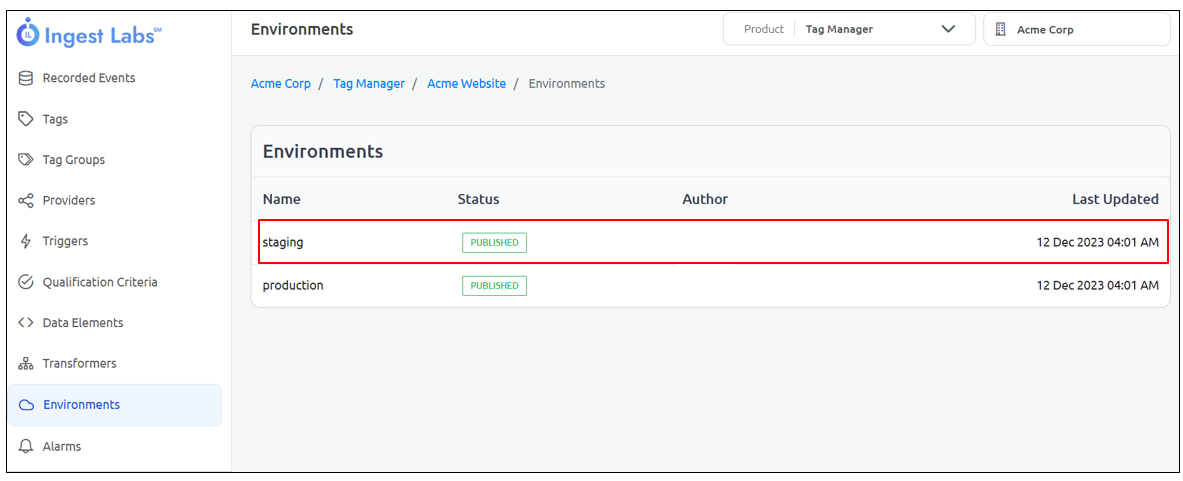
To view the Staging Environment, select the **Staging** option on the Environments screen.
## Procedure
Under the *Name* field, click *Staging*.
## Info
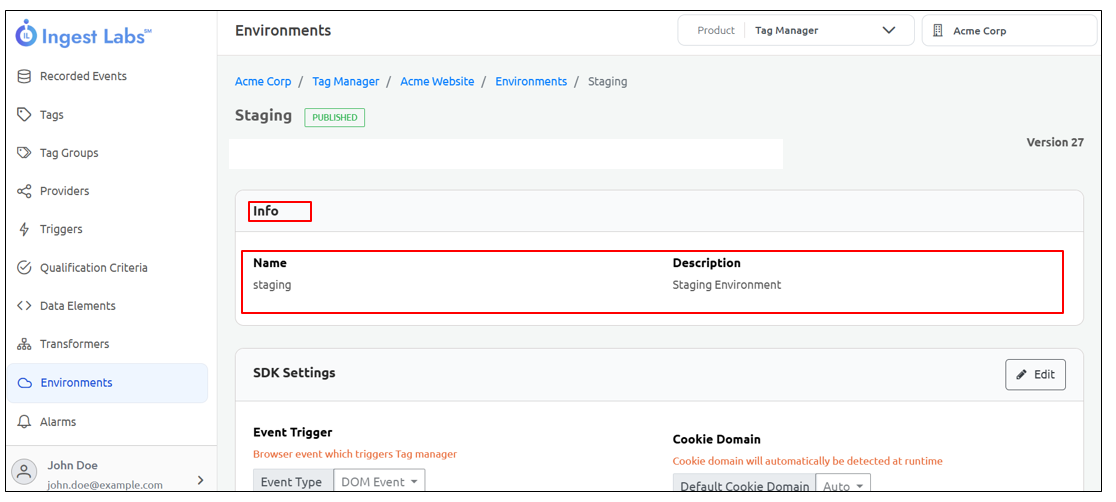
The **Info** section includes the following information.
* **Name**: Displays **Staging**, indicating the environment type.
* **Description**: Displays **Staging Environment**, which gives more details about the selected environment.
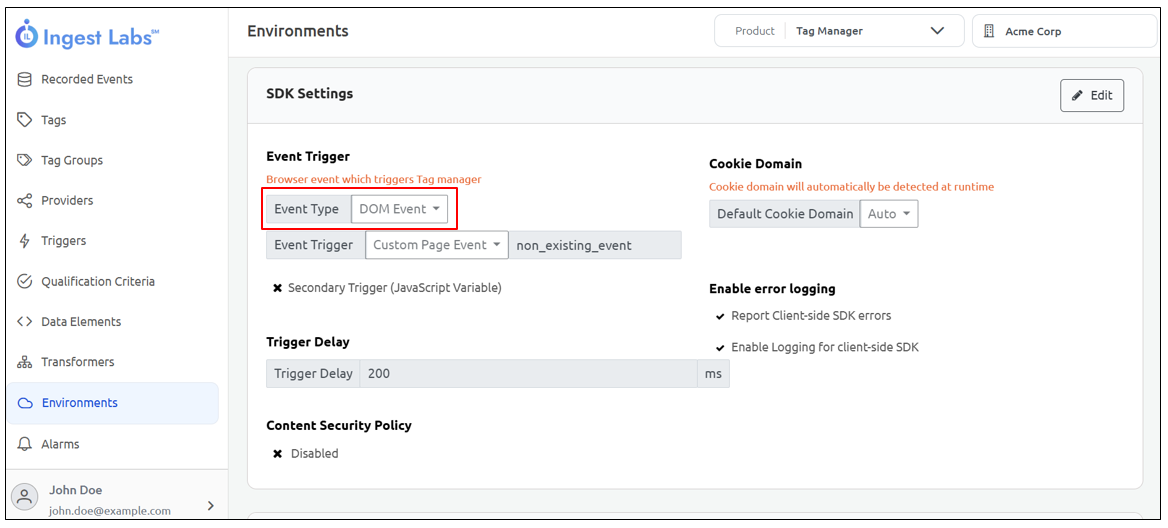
### SDK Settings
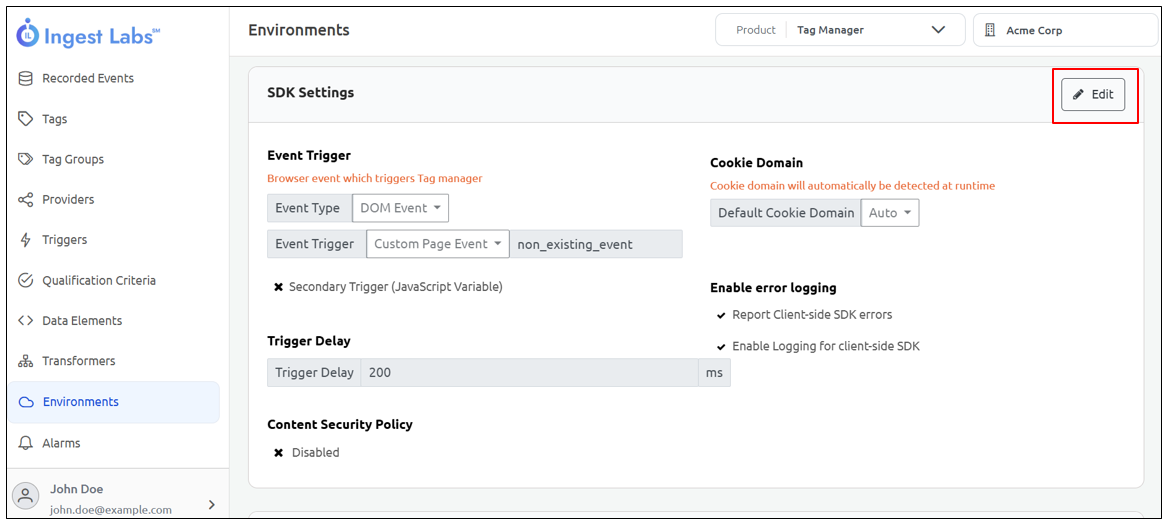
Click ***Edit***.
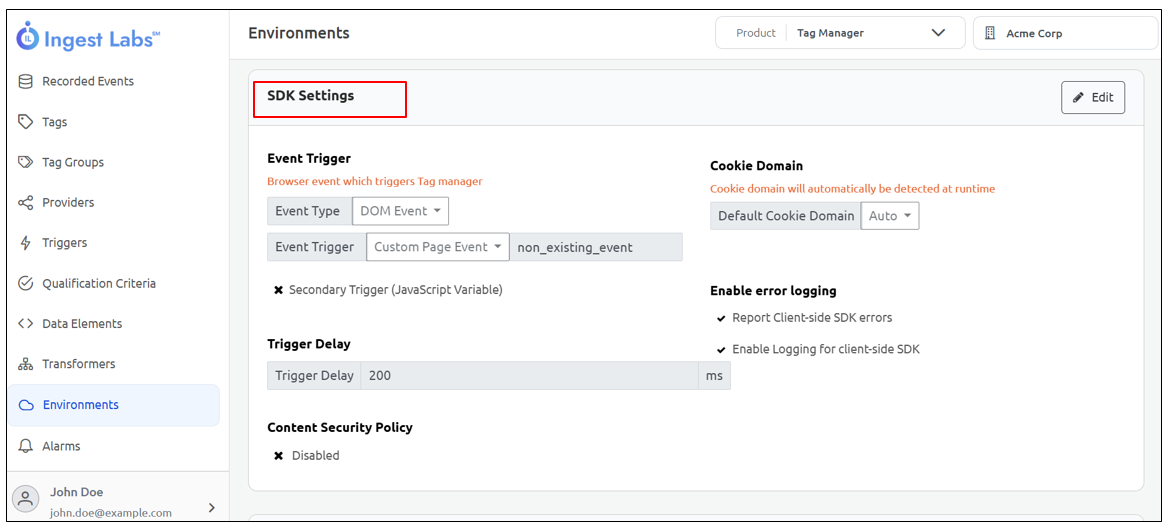
#### Event Type
Denotes the specific event that will be used to trigger the tag.
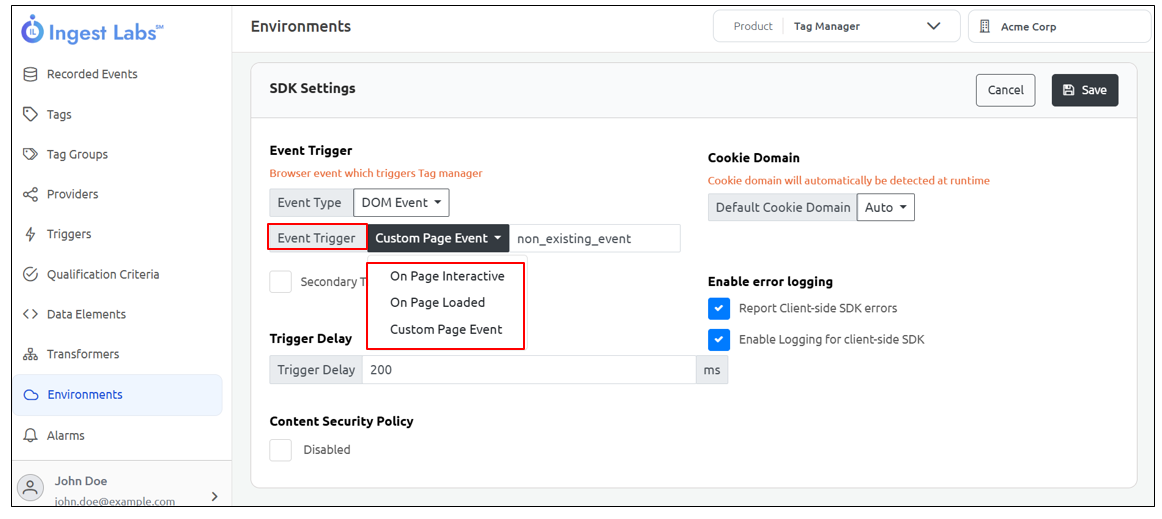
#### Event Trigger
Specifies the condition that activates the tag. You can choose from the following options:
* **On Page Interactive** – Triggers the tag when the page becomes interactive (for example, when the DOM is fully parsed and ready for user interaction).
* **On Page Loaded** – Triggers the tag as soon as the page is loaded.
* **Custom Page Event** – Allows you to define a custom event that triggers the tag.
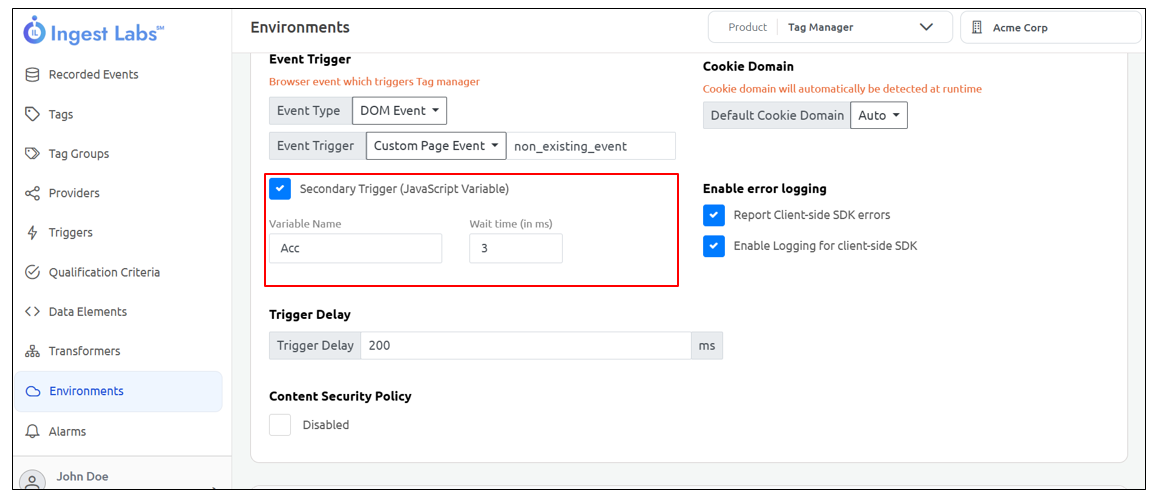
#### Secondary Trigger (JavaScript Variable)
Select this checkbox to enable a secondary trigger.
Once enabled, two additional fields appear:
* **Variable Name** – Specify the JavaScript variable that acts as the secondary trigger.
* **Wait Time** – Enter the in milliseconds that the system should wait before triggering the secondary action.
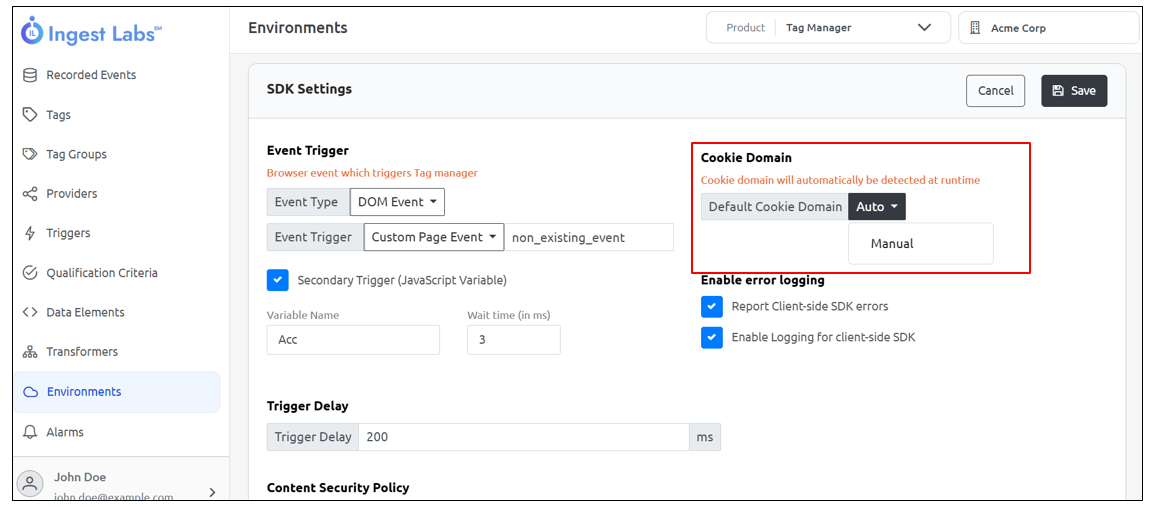
#### Cookie Domain
Determines how the cookie domain is set. Two options are available:
* **Auto** – The cookie domain is automatically detected at runtime.
* **Manual** – Allows you to manually specify the cookie domain.
**Note:** The cookie domain is automatically detected at runtime, so you don’t need to configure it manually.
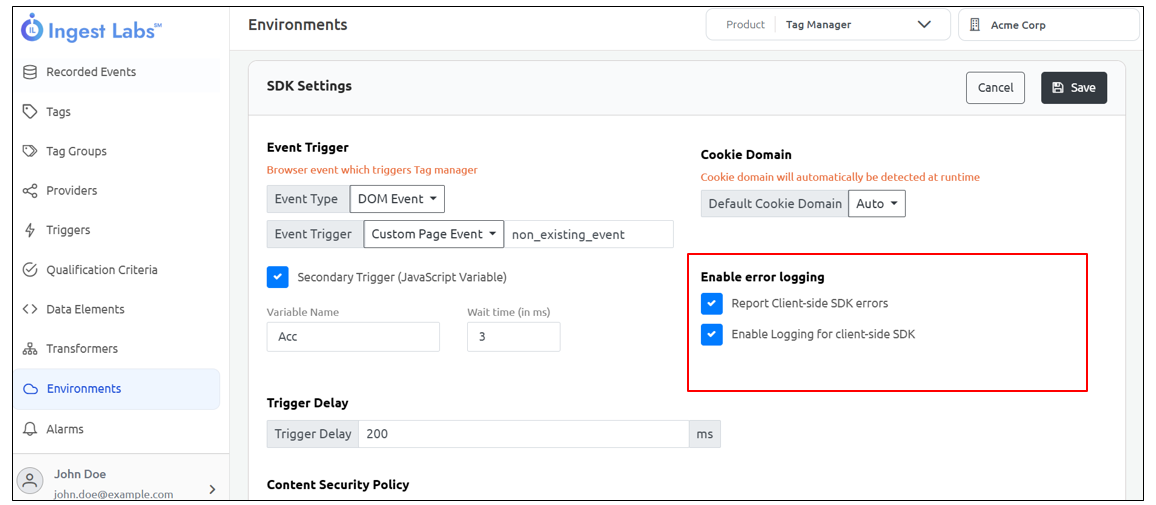
#### **Enable Error Logging**
Provides options to capture and report SDK errors on the client side.
* **Report Client-side SDK Errors** – Select this checkbox to allow the Client SDK to report errors and exceptions to the Ingest Labs servers.
* **Enable Logging for Client-side SDK** – Select this checkbox to capture and log client-side SDK activities locally for troubleshooting.
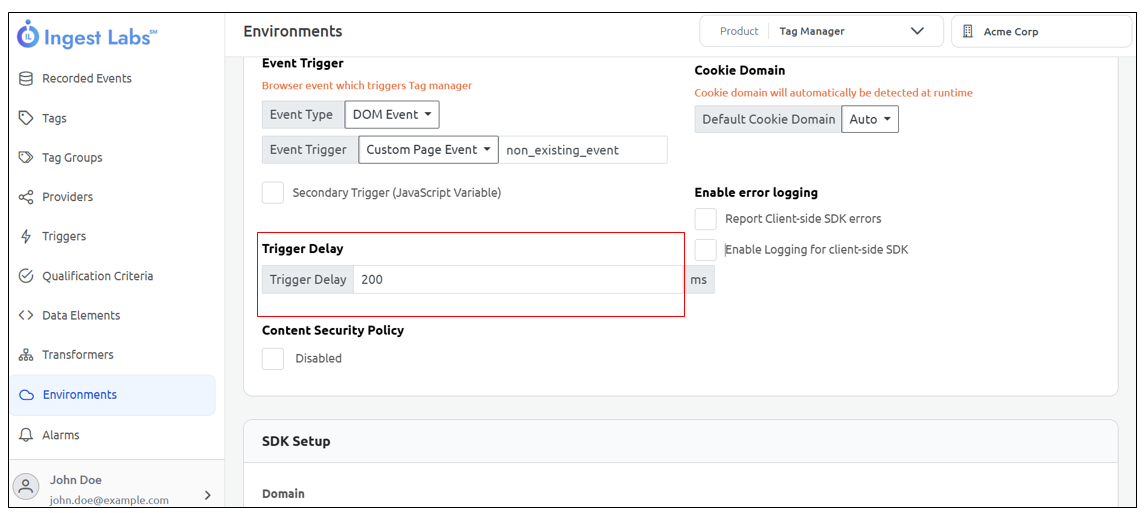
#### Trigger Delay
With Trigger Delay, you can set how long, in milliseconds, the system should wait after the page loads before firing the tag.
Note: Allows the page to render its content before the Tag Manager is fired, ensuring that all necessary elements are available.
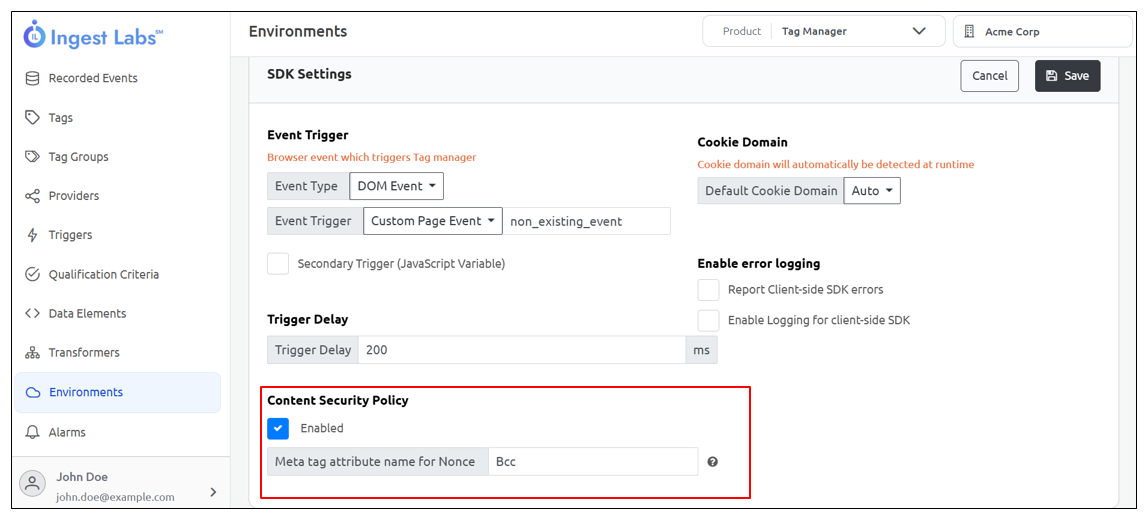
#### Content Security Policy
This allows the client to add an additional CSP field so we can use the same csp field to add scripts to the website - Else, it will fail. Select this check box to enable or disable this option. If Enabled, the following option is available.
* Meta tag attribute name for Nonce: The Attribute name in meta tag where the Nonce value is configured in the website.
### SDK Setup
To set up Ingest Labs SDK, you must include the following script tag in index.html file of the website. Once the script is executed, the SDK is installed on the client website.
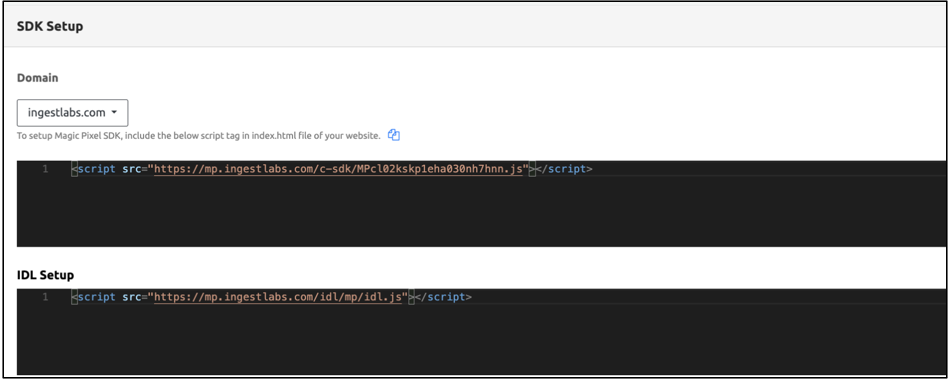
The following is the SDK URL that you must embed in the Staging environment of the client website. The first party domain is mp.ingestlabs.com and the Project ID in the sdk url is MPcl02kskp1eha030nh7hnn. In the IDL Setup, the idl.js file is Identity Link or First party identity script file. The following is the IDL setup url that you must embed in the Staging environment of the client website:

### Approved Domains and Collector URLs
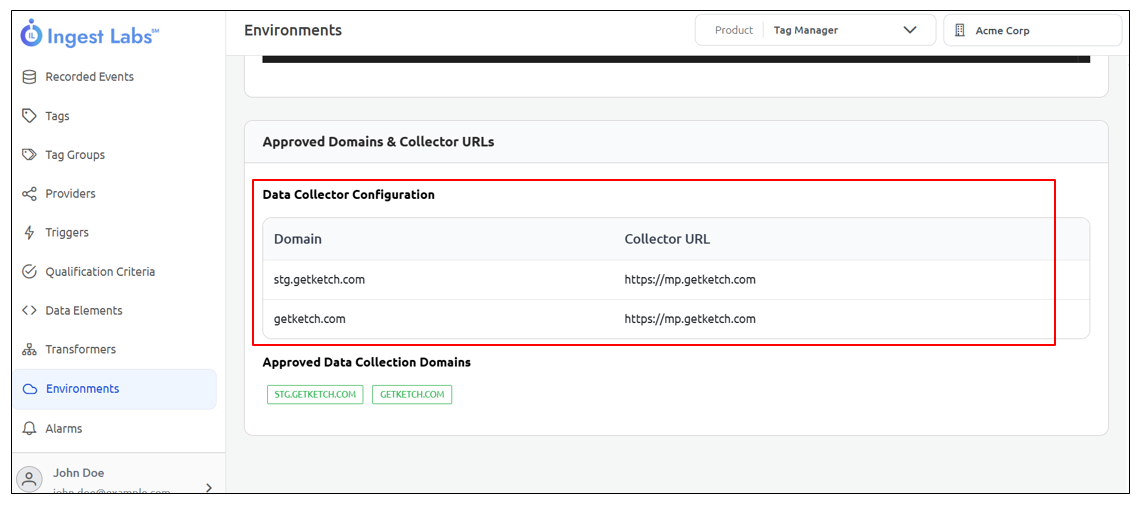
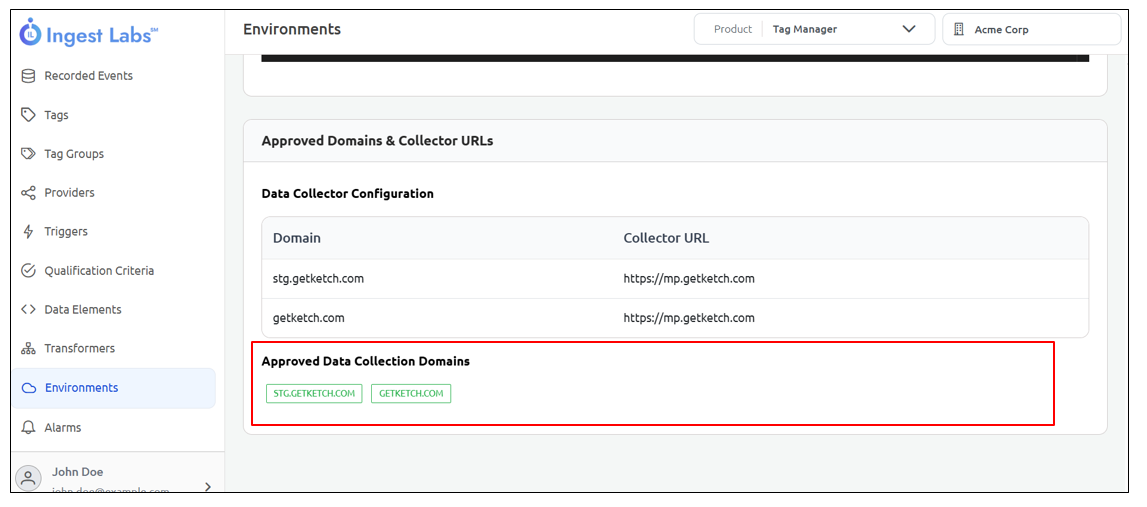
The Approved Domains has the list of domains on which the SDK will run. The SDK will execute only these listed domains. This is to avoid spamming and to ensure that the SDK of one site is not used on another site.
The Script sdk url changes when the domain is verified based on the data collector configuration. This decides which collector url to pick based on what domain. Collector url is the url to which Server Side Tags and report calls are sent.
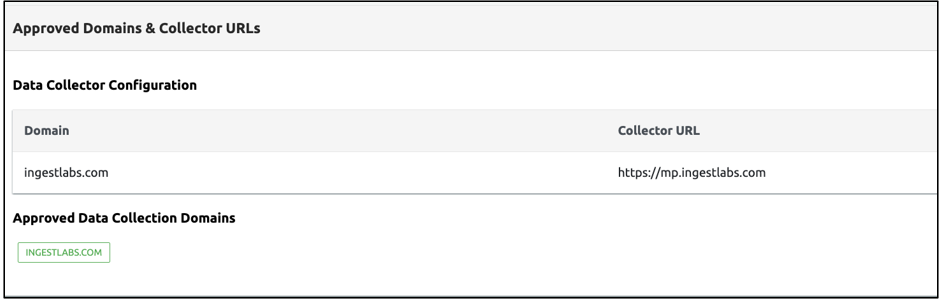
The Approved Domains & Collector URLs display the following information:
* **Domain** – Enter your website domain in this field.
* **Collector URL** – This displays the URL where the collected data is sent.
**Approved Data Collection Domains** – This section lists the domains that are authorized to collect data.
{% embed url="" %}
---
# Agent Instructions
This documentation is published with GitBook. GitBook is the documentation platform designed so that both humans and AI agents can read, navigate, and reason over technical content effectively. Learn more at gitbook.com.
## Querying This Documentation
If you need additional information that is not directly available in this page, you can query the documentation dynamically by asking a question.
Perform an HTTP GET request on the current page URL with the `ask` query parameter, and the optional `goal` query parameter:
```
GET https://docs.ingestlabs.com/tag-manager/environments/view-staging-environment.md?ask=&goal=
```
`ask` is the immediate question: it should be specific, self-contained, and written in natural language.
`goal` is optional and describes the broader end goal you are ultimately trying to accomplish on behalf of the user. GitBook uses it to tailor the answer towards what is most useful for that goal.
The response will contain a direct answer to the question and relevant excerpts and sources from the documentation.
Use this mechanism when the answer is not explicitly present in the current page, you need clarification or additional context, or you want to retrieve related documentation sections.