> For the complete documentation index, see [llms.txt](https://docs.ingestlabs.com/llms.txt). Markdown versions of documentation pages are available by appending `.md` to page URLs; this page is available as [Markdown](https://docs.ingestlabs.com/media-data-platform/dashboard/analytics-dashboard/ad-insights.md).
# Ad Insights
## Introduction
Provides an overall view of advertising performance across connected ad platforms.
## Dashboard – Overview Widget
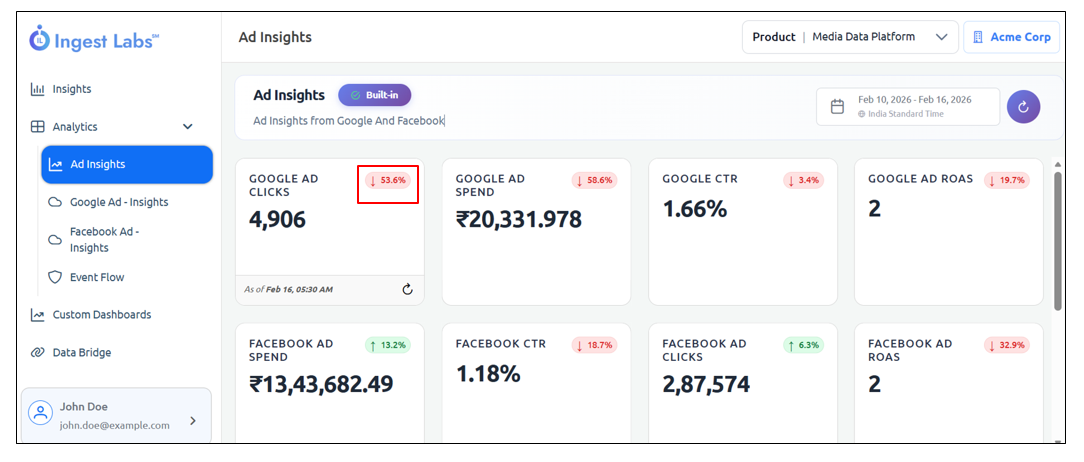
All widgets display data for the selected time period.
| Dashboard Screen | Description |
| ------------------ | ----------------------------------------------------------------------------------------------- |
| Google Ad Clicks | Shows how many times users clicked your Google ads. |
| Google Ad Spend | Shows the total amount of money spent on Google ads. |
| Google CTR | Shows the click-through rate — how often users clicked the ad after seeing it. |
| Google Ad ROAS | Shows the return on ad spend — how much revenue you earned for the money spent on Google ads. |
| Facebook Ad Spend | Shows the total amount of money spent on Facebook ads. |
| Facebook CTR | Shows the click-through rate — how often users clicked the ad after seeing it. |
| Facebook Ad Clicks | Shows how many times users clicked your Facebook ads. |
| Facebook Ad ROAS | Shows the return on ad spend — how much revenue you earned for the money spent on Facebook ads. |
Click the **Refresh** button to refresh all the widgets on the dashboard.
When you hover over a widget, the following options are displayed.
**As of \** – Shows the date and time when the widget data was last updated.
**Refresh icon** – Refreshes only the selected widget and loads the latest data.
## Trend indicator
This indicator shows the percentage change in the widget value compared to the previous period.
A **red downward arrow with a percentage** indicates that the value has **decreased** compared to the previous date range.
A **green upward arrow** indicates that the value has **increased** compared to the previous date range.
## Date and Time Range
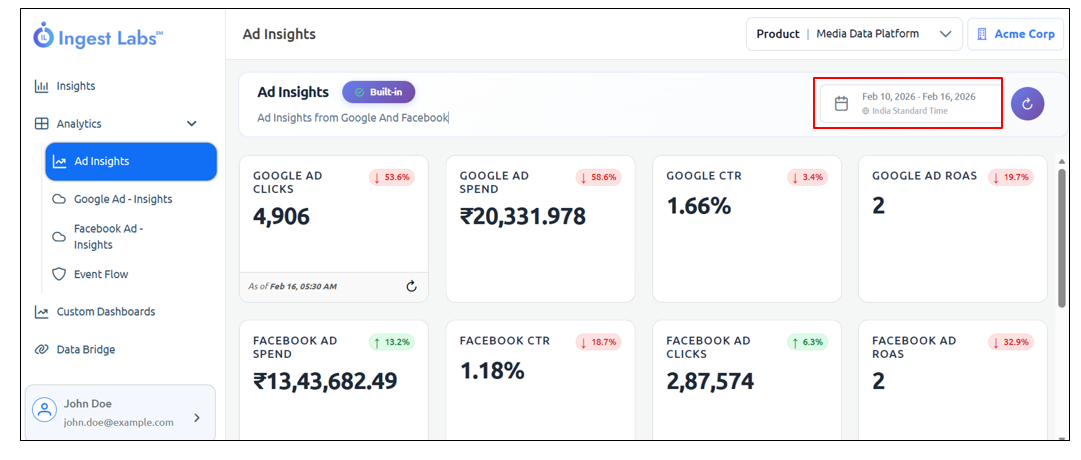
Use the Date and Time Range filter to select the period for which the widget data is displayed.
Note: By default, the Dashboard is set to display the data for the last 7 days.
Displays the currently selected start and end dates. At the moment, the dashboard is set to display data for the last seven days.
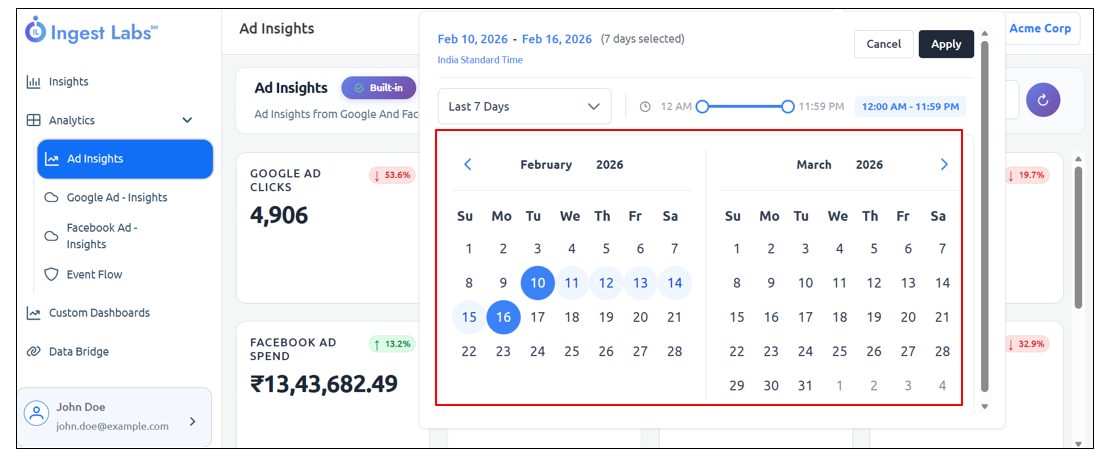
Click the drop-down to select a predefined date range, such as Today, Yesterday, Last 7 Days, This Month, or Previous Month. By default, *Last 7 Days* is selected.
You can use the slider to select the time range, and the selected time is displayed next to it.
Select the start and end dates directly from the calendar.
Use the left and right arrows to move between months.
Click ***Apply*** to apply the selected date and time range.
Click ***Cancel*** to discard your changes and close the filter.
## Google Campaign Insights
**Google Campaign Insights** provides a simple, campaign-level view of how your ads are performing on **Google**.
The following details are available:
| Google Campaign Insights | Fields |
| -------------------------------- | --------------------------------------------------------- |
| Account ID | Displays the unique ID of the Google Ads account |
| Account Name | Displays the name of the Google Ads account |
| Campaign ID | Displays the unique ID of the campaign |
| Campaign Name | Displays the name of the campaign |
| CTR (Click-Through Rate) | Shows how often users clicked the ad after seeing it |
| Ad Spend | Shows the total amount spent on the campaign |
| Clicks | Shows the total number of times users clicked the ad |
| Impressions | Shows how many times the ad was displayed |
| ROAS (Return on Ad Spend) | Shows how much revenue was generated for the amount spent |
| CPM (Cost per 1,000 Impressions) | Shows the cost for every 1,000 ad impressions |
When you hover over, the following options are available:
**As of** – Displays the date and time when the widget data was last updated.
**Export to CSV** – Downloads the widget data in CSV format.
**Refresh widget** – Refreshes the widget to load the latest data.
{% embed url="" %}
---
# Agent Instructions
This documentation is published with GitBook. GitBook is the documentation platform designed so that both humans and AI agents can read, navigate, and reason over technical content effectively. Learn more at gitbook.com.
## Querying This Documentation
If you need additional information that is not directly available in this page, you can query the documentation dynamically by asking a question.
Perform an HTTP GET request on the current page URL with the `ask` query parameter, and the optional `goal` query parameter:
```
GET https://docs.ingestlabs.com/media-data-platform/dashboard/analytics-dashboard/ad-insights.md?ask=&goal=
```
`ask` is the immediate question: it should be specific, self-contained, and written in natural language.
`goal` is optional and describes the broader end goal you are ultimately trying to accomplish on behalf of the user. GitBook uses it to tailor the answer towards what is most useful for that goal.
The response will contain a direct answer to the question and relevant excerpts and sources from the documentation.
Use this mechanism when the answer is not explicitly present in the current page, you need clarification or additional context, or you want to retrieve related documentation sections.